Verify our privacy claims


Let’s be honest: an app that looks at your face all day sounds a bit creepy.
If you felt a little uneasy when Advancify asked for camera access, good. That’s a healthy reaction.
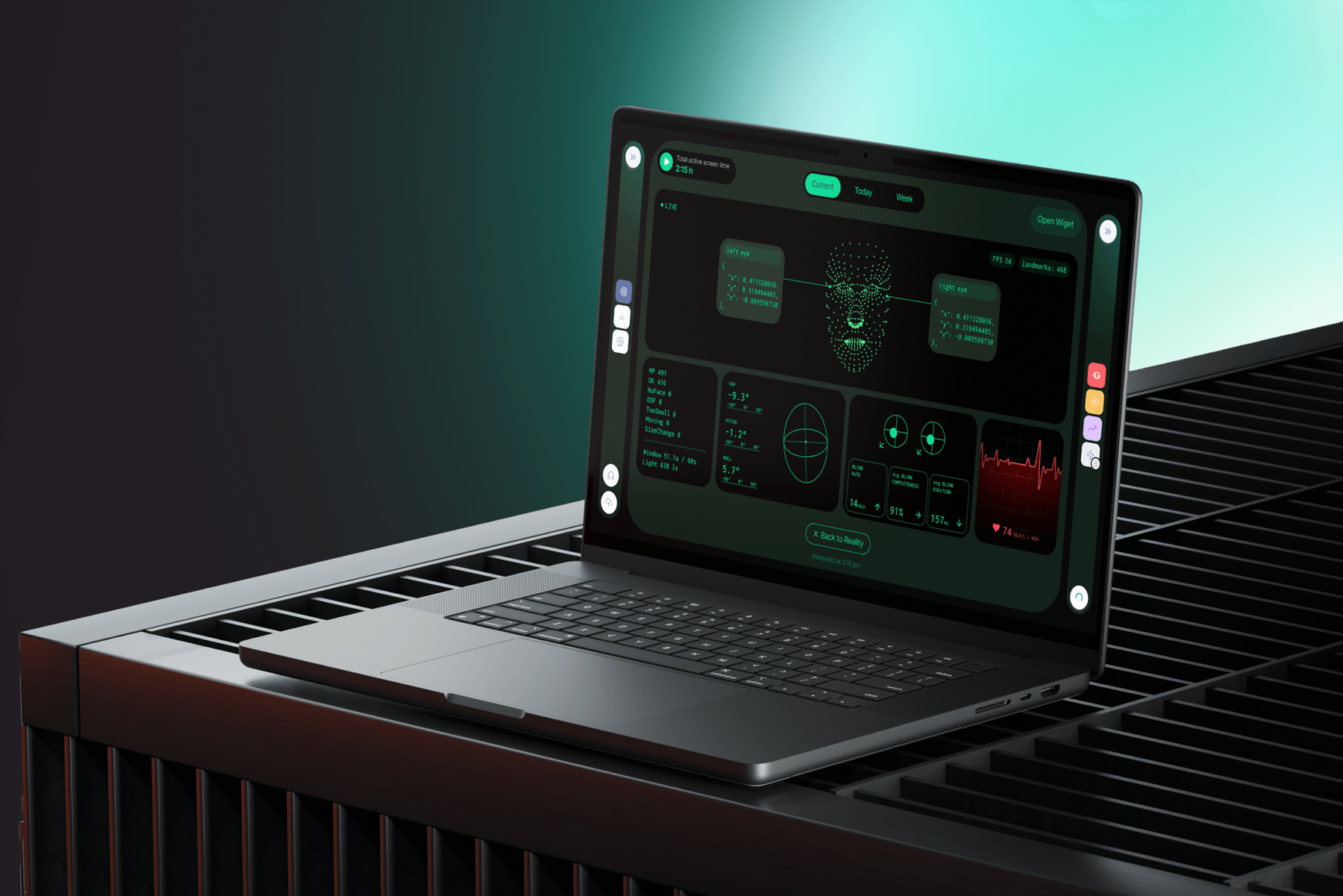
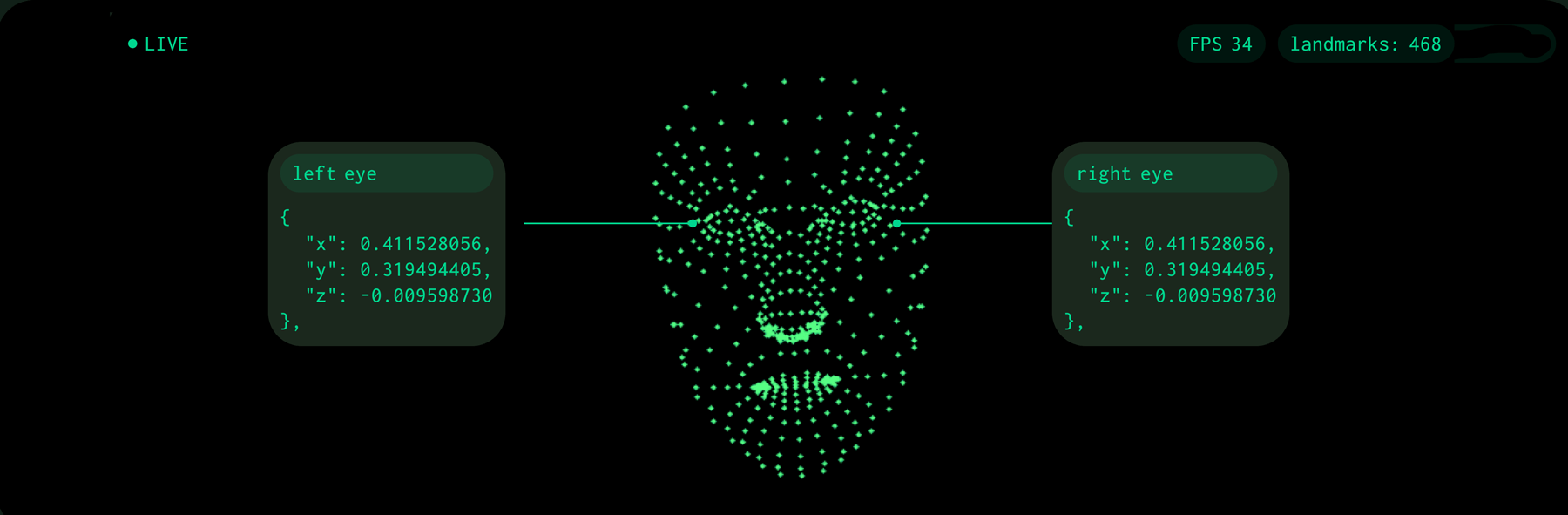
Advancify uses your camera to map tracking points around your eyes and face, then follows how they change over time. The analysis works with numbers describing positions and movement. You can see these tracking points for yourself in the app’s Behind the Scenes section.
Camera images are processed on your Mac, never stored or sent to us. But “trust us, we’re the good guys” isn’t a privacy policy. Everyone says that.
So we’ll skip the speech. Here’s how you can check for yourself.
What we’re promising
- Your camera video never leaves your Mac. No live video, no photos, no “just one quick snapshot”.
- Nothing Advancify works out from the camera leaves your Mac either. Your energy level, eye strain, breaks and heart rate are all calculated on your computer and saved there. Only there.
Each check below takes just a few minutes. You don’t need to do them all – start with whichever feels easiest to gain more confidence in how Advancify protects your privacy.
Check 1: Look at how much it sends
Video is huge. One hour of even blurry webcam footage is about 1 GB. You can’t sneak that past anyone.
- Press Cmd + Space, type Terminal, and press Return.
- Paste this line and press Return:
nettop -P -t external -p Advancify -p com.apple.WebKit - Leave the window open and do your usual thing for an hour.
- Look at the bytes_out column. That’s everything Advancify has sent to the internet since you pressed Return. Press q to close it.
After an hour you’ll see about 2–3 MB. That’s a few hundred times too little to be video. Even a single photo would show up as an obvious jump.
What’s in that command?
- -t external means “only count traffic that actually leaves your Mac”. The Advancify window loads its own screens (fonts, pictures, buttons) from the app itself, and some tools, like Activity Monitor, count that as “sent” even though it never leaves your computer.
- com.apple.WebKit is the macOS helper that does the Advancify window’s networking (more on it in Check 5). Safari and Mail use the same kind of helper, so quit them first to get a clean number.
Here’s what it looked like on our Mac after an hour:

Check 2: Pull the plug
- Click the Wi-Fi icon in the menu bar and turn it off. If you’re on a cable, unplug it.
- Keep working for 10–15 minutes.
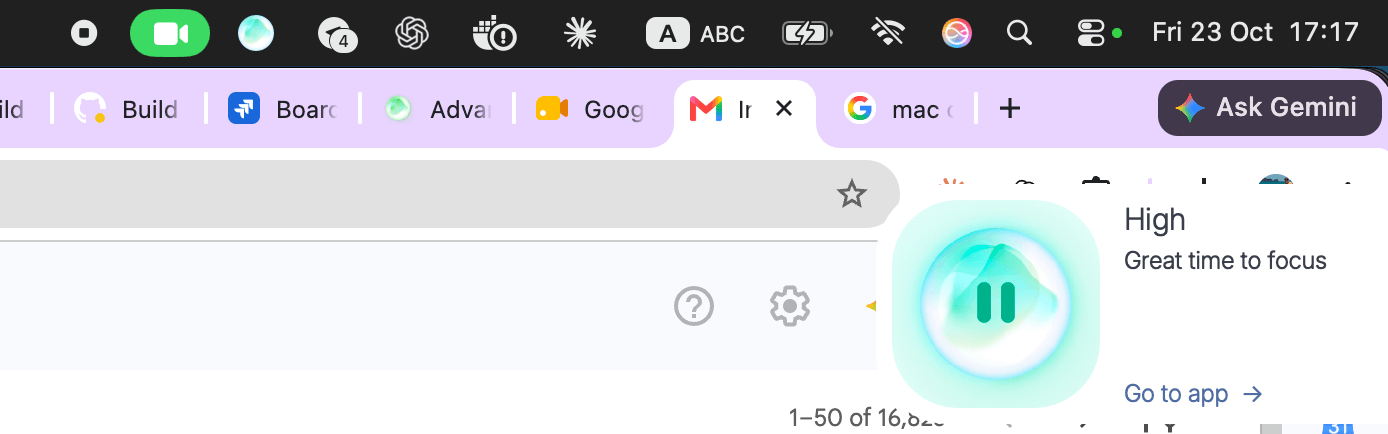
Advancify carries on as if nothing happened. Your energy level and break reminders keep updating.
If your camera were being analyzed on some server somewhere, everything would freeze the moment you went offline. It doesn’t, because everything happens right there on your Mac.
Here’s ours, 15 minutes into being offline:
Check 3: Hunt for hidden photos
If an app were secretly saving pictures of you, they’d have to be stored somewhere. So let’s go looking.
- Open Finder.
- In the menu bar, click Go → Go to Folder…
- Paste this and press Return:
~/Library/Application Support/Advancify - Press Cmd + F. At the top, pick “Advancify” instead of “This Mac”, then set Kind to Image.
- Do the same for these two folders:
~/Library/Caches/Advancify
/Users/Shared/Advancify
No photos, no videos. If one of the folders doesn’t exist at all, that’s fine too, and it means there’s nothing there to find.
Check 4: Read our mail
Okay, full disclosure: the app does send us a little bit of technical information, things like “the app started” or “oops, something broke”, so we can fix bugs. But before anything goes out, it sits in a plain text file on your Mac that you can open and read.
- In Finder, click Go → Go to Folder… and paste:
~/Library/Application Support/Advancify/Advancify/logs - Right-click any file in there and choose Open With → TextEdit.
It looks pretty technical, but you can skim it. You’ll see lines like “camera started”, “signed in” and “checking for updates”. A few things in there might catch your eye, so here’s what they are:
- Your camera’s name, like MacBook Pro Camera. It helps us fix “the app grabbed the wrong camera” bugs.
- Brightness numbers, like mean=112. That’s just how bright or dark the picture is on average, one number, so we can tell “dark room” apart from “broken camera”. You can’t rebuild a picture from that, any more than you can rebuild a song from its volume level.
- Long scrambled IDs. They let us know two bug reports came from the same Mac, without knowing who you are.
Here’s a piece of a real log file, with a few of those lines highlighted:
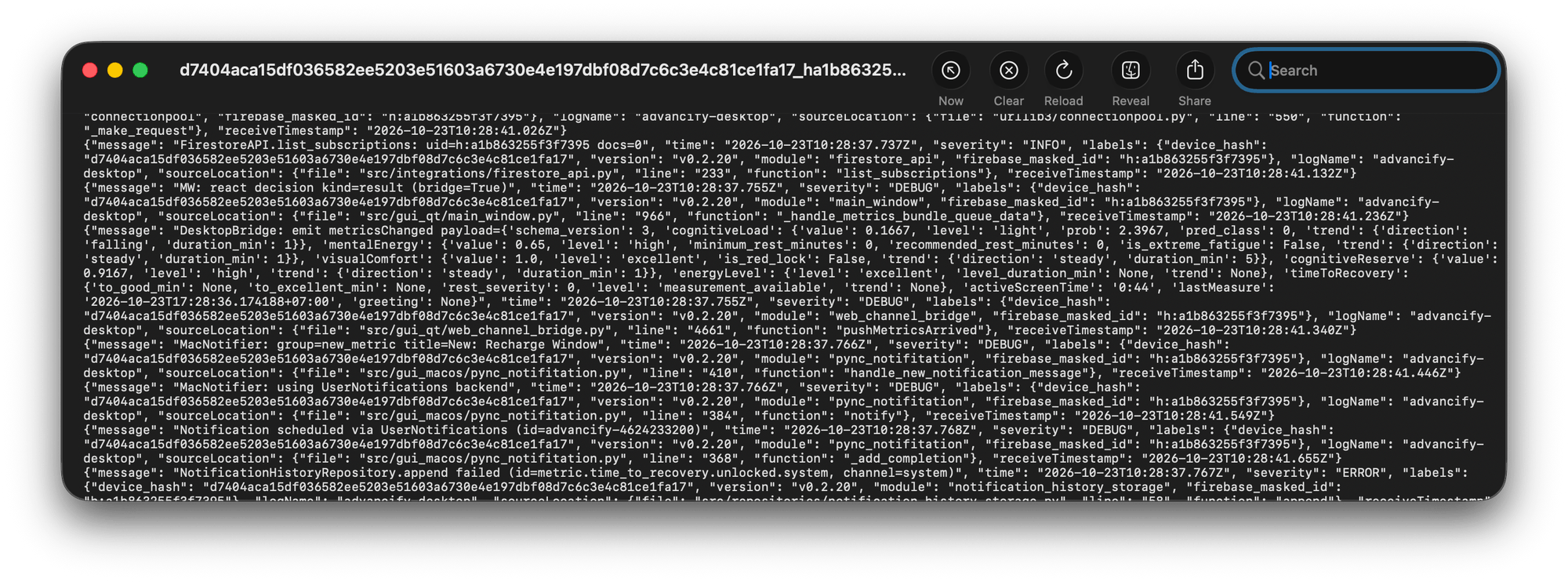
What's not in there: pictures, video, or anything about how tired or focused you were.
Check 5: Spy on the app
This one takes a bit longer, but it’s the most thorough check.
- Install LuLu. It’s a free, open-source app from Objective-See (objective-see.org) that pops up every time an app tries to connect to the internet.
- Use your Mac normally for a day.
- Look at everywhere Advancify tried to connect, and compare it with the list below.
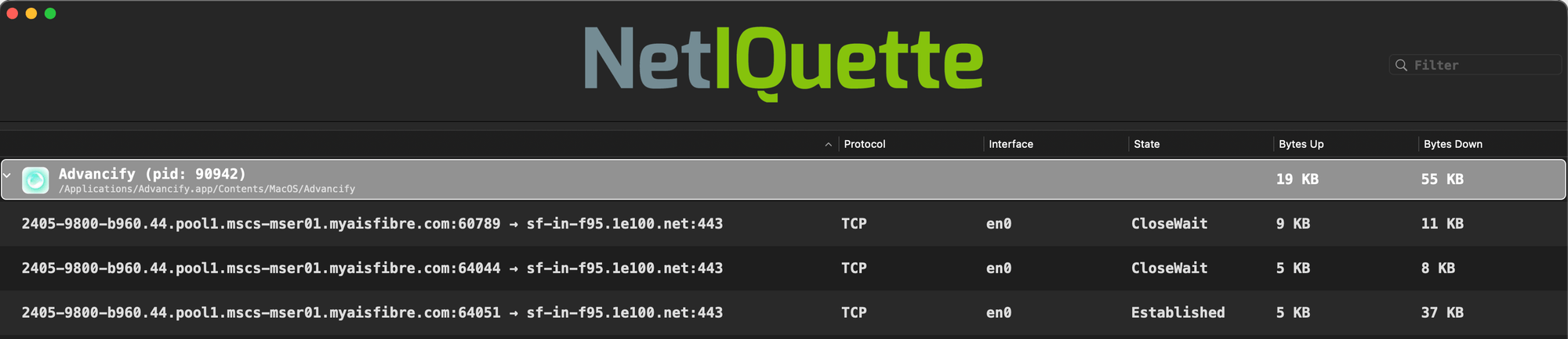
Spot Advancify connecting somewhere that’s not on our list? Tell us. Seriously, we’ll treat it as a bug.
Heads up:
- You’ll see a connection to gstatic.com (that’s Google) about once a second. That’s just the app checking whether you’re online. It’s an empty request that carries nothing about you.
- You’ll also see something called Advancify Networking. That’s not a second copy of the app. The Advancify window is drawn by WebKit, the engine behind Safari that’s built into macOS, and macOS gives it its own helper for going online. Things like signing in go through it, and macOS labels it with our name so you know whose it is.
The full list: everything Advancify sends
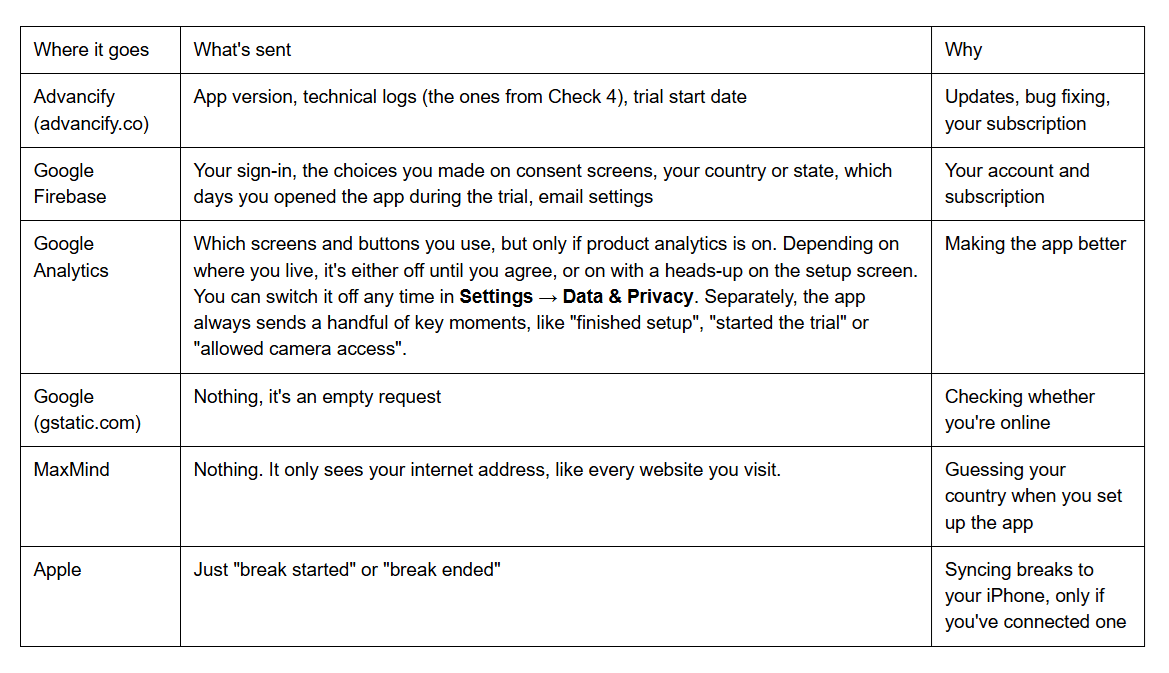
What’s never on the list: camera video, photos, the shape of your face, your heart rate, blinks, eye strain, energy, fatigue, or any other measurement. Ever.
It’s your data
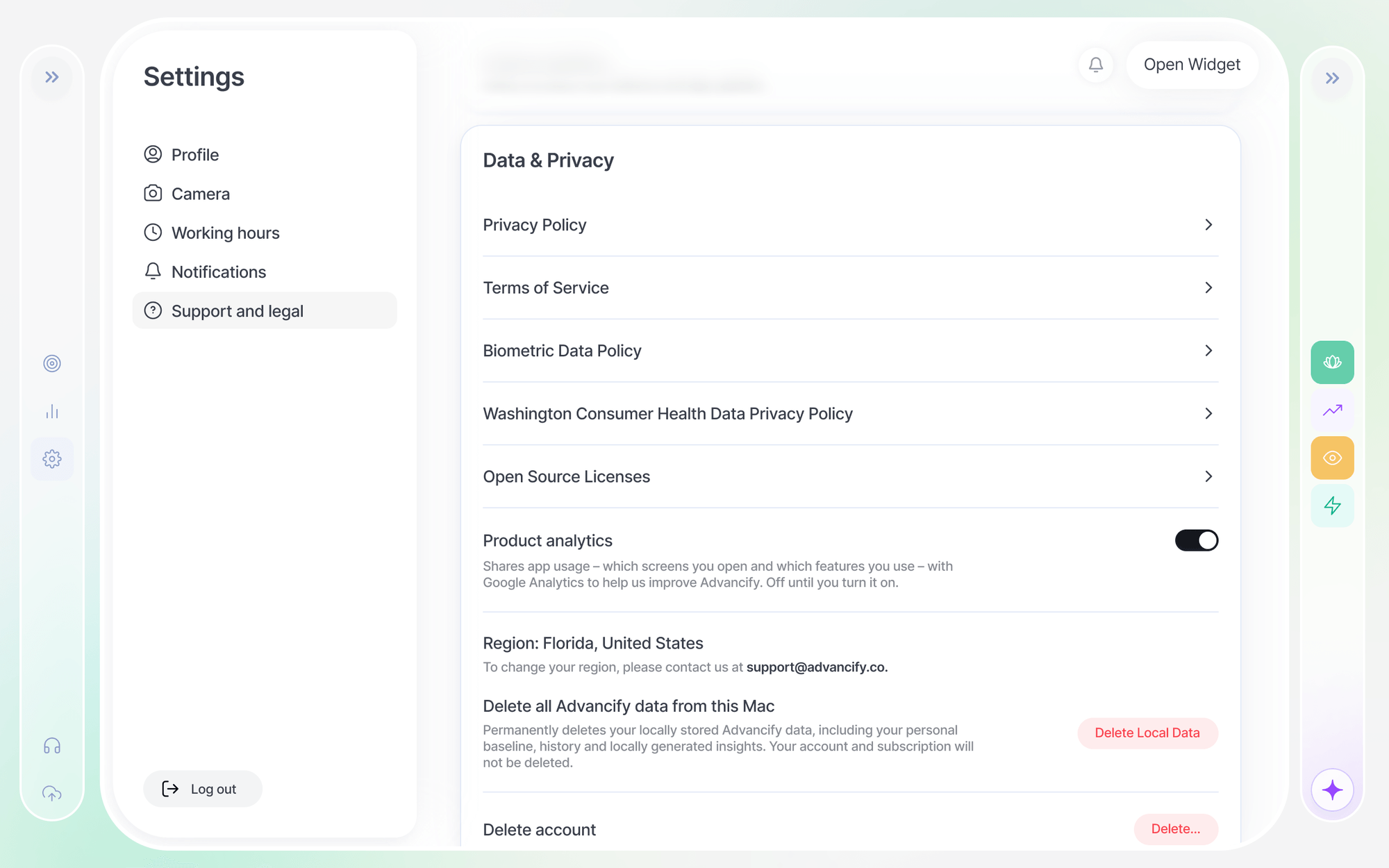
Everything Advancify measures lives on your Mac. Want it gone? You can delete all of it any time in Settings → Data & Privacy.
This permanently clears your accumulated statistics. You’ll need to go through calibration again and build your history from scratch.
Found something fishy?
If any of these checks turns up something we didn’t mention here, email us at support@advancify.co. We’ll get back to you, and if we got something wrong, we’ll fix it and update this page.
A privacy promise you can’t check isn’t worth much. We’d rather give you one you can.